
Our system has detected one of two potential issues:
-
Compromised Password: The password you use for Dropbox has been found in a known data breach, making it insecure and putting your account at risk.
-
Use of Work Email: Your work email is being used for a personal service, which is against company policy to ensure the security and integrity of our systems.
Please follow the relevant instructions below to resolve this issue immediately.
Part 1: Scenario: Your Password Has Been Compromised
If you were notified about a compromised password, you must change it immediately to protect your account from unauthorized access. The fastest way to do this is using the "Forgot your password?" feature, even if you still remember the old one.
Step-by-Step Guide:
-
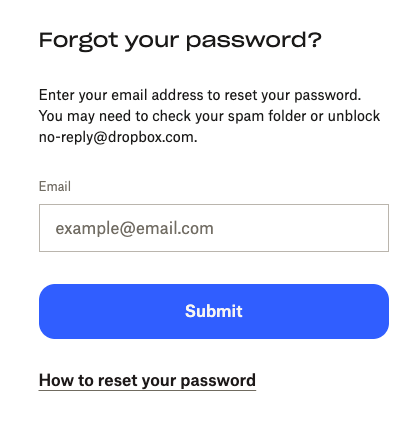
Navigate to the Password Reset Page: Go directly to the Dropbox password reset page.
-
Enter Your Email Address: Enter your work email address (the one associated with your Dropbox account) into the field and click the "Submit" button.
-
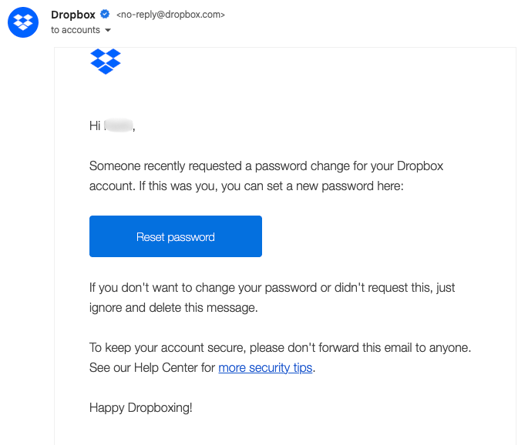
Check Your Email: Dropbox will send a password reset link to your inbox. If you don't see the email within a few minutes, check your spam or junk folder.
-
Create a New, Strong Password: Open the email and click the reset link. You will be prompted to create a new password. Choose one that is strong, unique, and not used on any other website.
After completing this, your account will be secure.
If you were also notified about using a work email, please proceed to Part 2.
Part 2: Scenario: Your Work Email is Used on the Account
Using a company email for personal services is against Aftra's security policy. You have two options to resolve this.
Option A: Change the Email on Your Account (Recommended)
This is the best option if you wish to keep your Dropbox account and the files stored in it.
-
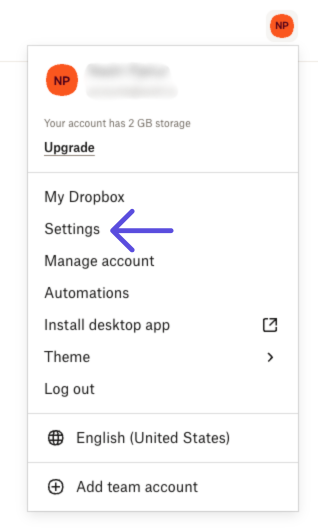
Log In and Go to Settings: Log in to your Dropbox account. In the top-right corner, click on your avatar (profile picture or initials) and select "Settings" from the dropdown menu.
-
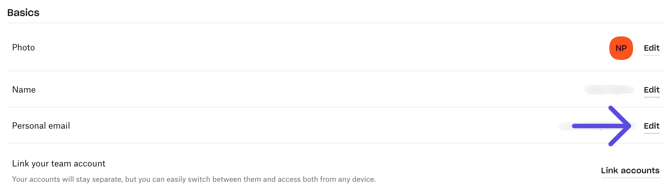
Find the Email Field: You will land on the "General" tab. Locate your email address and click the "Edit" link next to it.
-
Update and Verify Your Email: Enter your new personal email address, confirm it, and enter your current Dropbox password. Click "Update email". Dropbox will send a verification link to your new email address to finalize the change. You must click this link to complete the process.
Option B: Permanently Delete Your Account
If you no longer need the account or its files, you can delete it permanently.
Warning: This action is irreversible. All files and data stored in your Dropbox account will be permanently erased and cannot be recovered.
-
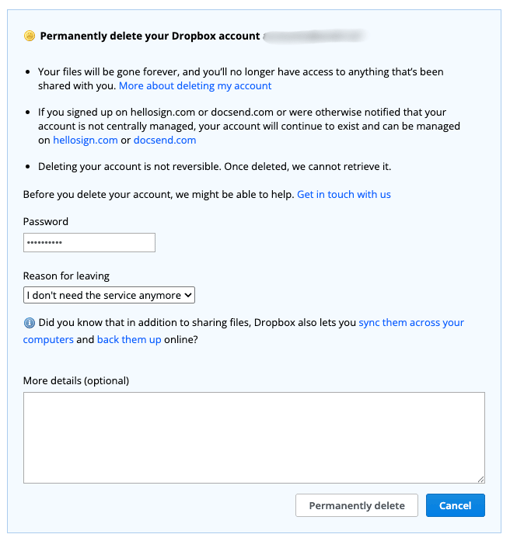
Log In and Go to the Deletion Page: Log in to your Dropbox account, then navigate to the account deletion page.
-
Confirm Deletion: You may be asked why you are leaving (this is optional). You must re-enter your account password to confirm your identity.
-
Finalize Deletion: Read the warning carefully, then click the "Permanently delete" button to erase your account and all its data.
Thank you for taking prompt action to secure your account and comply with your company's security policies.