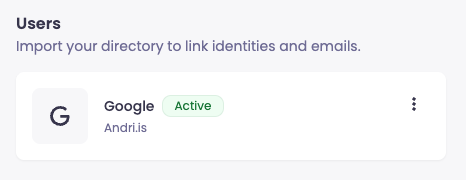
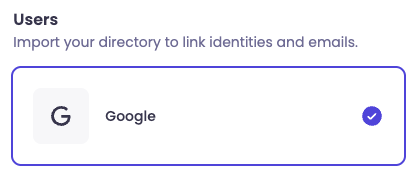
Step 1: Select the Google Provider
Navigate to the Users section within your Aftra platform.
-
Locate the Google card.
-
Click the card to begin the integration process.
Step 2: Authenticate with Google
You will be redirected to the Google Choose an account page.
-
Select Account: Choose the corporate Google account you wish to use for the integration (e.g.,
you@yourcompany.com).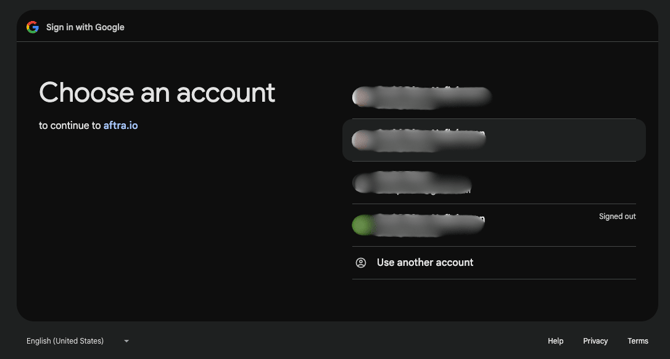
Step 3: Handle Security Prompt
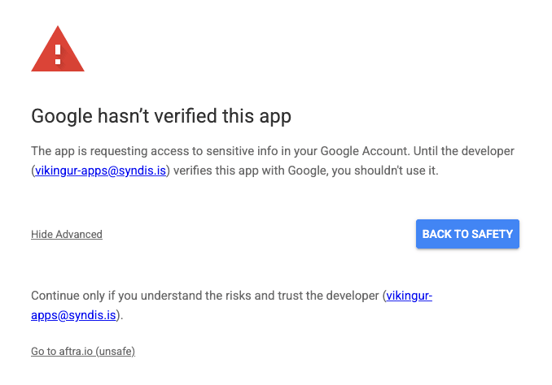
You may see a "Google hasn't verified this app" warning screen.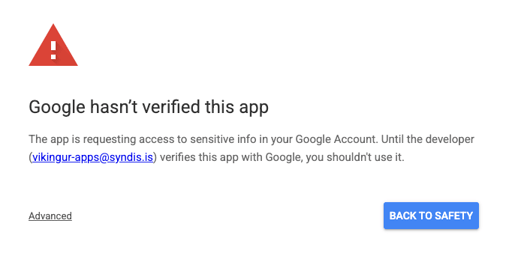
-
Expand Options: Click the underlined Advanced link in the bottom left corner.
-
Proceed: Click the link labeled Go to aftra.io (unsafe) to continue the setup.
Step 4: Authorize Permissions
-
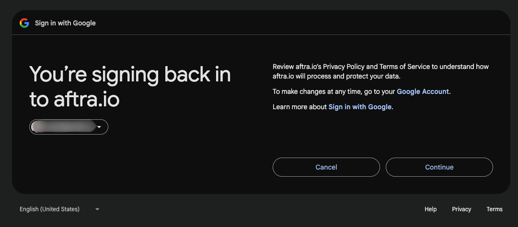
Confirm Sign-in: On the "You're signing back in to aftra.io" screen, click Continue.
-
Grant Access: You will see a summary screen stating "aftra.io wants access to your Google Account." Review the developer info (
vikingur-apps@syndis.is) and click Continue to grant the necessary permissions.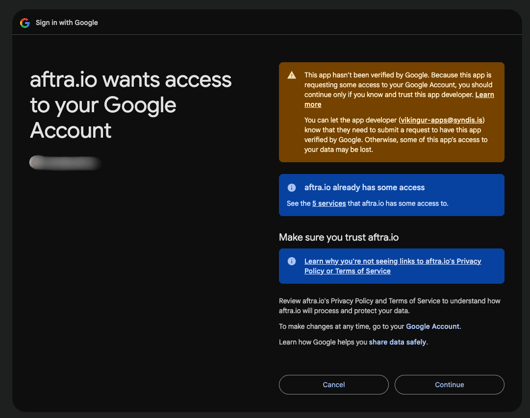
Step 5: Confirmation
Once authorized, you will be redirected back to the Aftra platform.
-
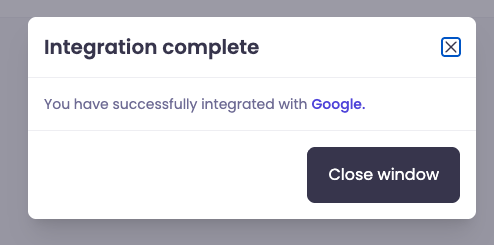
A popup window will appear confirming Integration complete.
-
The message will state: "You have successfully integrated with Google."
-
Click Close window.
Step 6: Verification
After closing the window, check the Google card in your dashboard.
-
Success: The card should display an Active tag (in green) alongside your connected domain (e.g.,
yourcompany.com).