
Keeping your certificates up-to-date is crucial for maintaining the security and trustworthiness of your applications. Expired or improperly configured certificates can lead to service outages, security warnings for your users, and even data breaches.
Hackers can intercept the weakened connection to steal sensitive data like passwords and financial details, or inject malicious code directly into the user's session.
This guide will walk you through the process of updating your certificates on common systems.

Hackers can intercept the weakened connection to steal sensitive data like passwords and financial details, or inject malicious code directly into the user's session.
This guide will walk you through the process of updating your certificates on common systems.
1. Prerequisites and Planning
Before you begin, ensure you have the following:
- New Certificate Files: You should have received new certificate files (e.g.,
crt, .pem, .cer) and potentially a new private key (.key) from your Certificate Authority (CA). - Access to Servers: Administrative access to the servers where the certificates need to be installed.
- Backup: Always back up your existing certificate files and server configurations before making any changes.
- Downtime Consideration: Plan for a brief period of downtime, as services will need to be restarted.
2. General Steps for Updating Certificates
While the specifics vary by system, the general process involves:
- Locating Existing Certificates: Find where your current certificates and private keys are stored.
- Uploading New Certificates: Place the new certificate files on your server.
- Updating Configuration: Point your server software (e.g., Apache, Nginx, IIS) to the new certificate and private key files.
- Verification: Confirm that the new certificate is correctly installed and active.
- Restarting Services: Restart the relevant services for the changes to take effect.
3. Updating Certificates on Common Systems
A. Apache HTTP Server
Apache is a widely used web server. Here's how to update your SSL certificates:
- Locate Configuration: Your Aftra dashboard specifies the exact hostname where this issue was detected, helping you quickly identify the correct server. On that server, the main SSL configuration is usually found in
httpd-ssl.confor a similar file within your Apache configuration directory (e.g.,/etc/httpd/conf.d/).
- Upload New Files: Copy your new
.crt(or.pem) and.key
files to a secure location on your server, such as/etc/ssl/certs/and/etc/ssl/private/respectively.
-
Update Configuration:Edit the Apache configuration file. You'll need to modify the following directives:
SSLCertificateFile /etc/ssl/certs/your_new_certificate.crtSSLCertificateKeyFile /etc/ssl/private/your_new_private.key(if you have an intermediate certificate chain file)SSLCertificateChainFile /etc/ssl/certs/your_new_chain.crt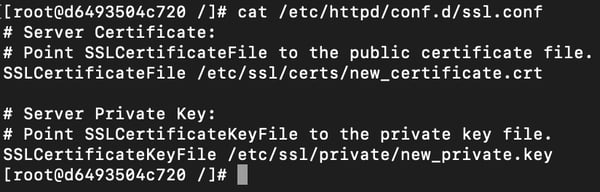
- Test Configuration: Run
sudo apachectl configtestto check for syntax errors.
-
Restart Apache:(on RHEL/CentOS 7+, Debian/Ubuntu 16.04+)
sudo systemctl restart httpd (on older systems)
sudo service httpd restart
B. Nginx
Nginx is known for its high performance and efficiency.
- Locate Configuration: Your Aftra dashboard specifies the exact hostname where this issue was detected, helping you quickly identify the correct server. On that server, Nginx server block configurations are typically found in
/etc/nginx/sites-available/or/etc/nginx/conf.d/
- Upload New Files: Copy your new
.crt(or.pem) and.keyfiles to a secure location, such as/etc/nginx/ssl/
- Update Configuration: Edit the relevant Nginx server block file. Update the
ssl_certificateandssl_certificate_keydirectives:ssl_certificate /etc/nginx/ssl/your_new_certificate.crt;ssl_certificate_key /etc/nginx/ssl/your_new_private.key;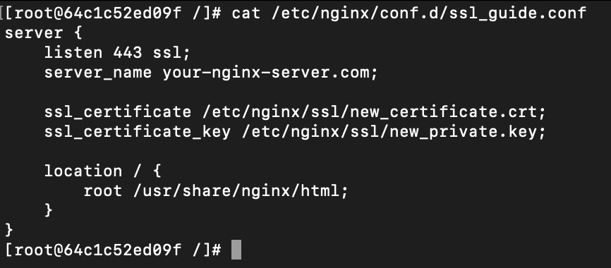
- Test Configuration: Run
sudo nginx -tto check for syntax errors.
-
Reload Nginx:
sudo systemctl reload nginx(preferred for zero downtime)
sudo systemctl restart nginx(if a full restart is needed)
C. Microsoft Internet Information Services (IIS)
IIS is commonly used on Windows servers.
- Open IIS Manager: Press
Win + R, typeinetmgr, and hit Enter -
Import New Certificate:- In the IIS Manager, select the server name in the left pane.- Double-click "Server Certificates" in the main pane.- In the "Actions" pane (right side), click "Import...".- Browse to your new .pfx file
(which should contain both the certificate and private key).
Enter the password if applicable. -
Update Site Binding:- In the left pane, navigate to "Sites" and select the website you want to update.- In the "Actions" pane, click "Bindings...".- Select the
httpsbinding and click "Edit...".- From the "SSL certificate:" dropdown, select your newly imported certificate. -
Restart Site/IIS:- Close the bindings window. In the "Actions" pane for the site, click "Restart".
4. Verification
After updating your certificates and restarting services, it's critical to verify the installation:
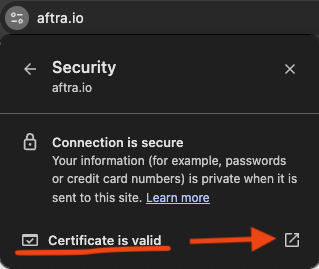
Browser Check: Open your website in a web browser. Look for the padlock icon in the address bar. Click on it to view certificate details and ensure it's your new certificate and that it's valid.
External Tools: For a more comprehensive, public-facing report of your server's overall SSL/TLS configuration, you can use a trusted online tool like the SSL Labs SSL Server Test.
5. Troubleshooting Common Issues
Service Not Starting: Check server logs (e.g., Apache error logs, Nginx error logs, Windows Event Viewer) for specific error messages.
"Certificate Mismatch" Error: Ensure the Common Name (CN) or Subject Alternative Names (SANs) on your new certificate match your domain. The Aftra opportunity details will show the exact name it was expecting, which you can compare against your new certificate.
"Insecure" Browser Warning: Verify that all parts of your certificate chain (root, intermediate, and server certificates) are correctly installed.
Incorrect Permissions: Ensure your certificate and private key files have the correct read permissions for your web server process, but are not world-readable.
By following these steps, you can confidently update your TLS/SSL certificates, maintain a secure environment for your users, and quickly improve your overall score in Aftra. If you encounter persistent issues, consult your system's documentation or contact your certificate authority for support.
Proactive Certificate Management: Preventing Future Expirations
Manually updating certificates can be time-consuming and prone to human error. To avoid this alert in the future, it's essential to adopt a proactive approach. Automating certificate management not only prevents outages but also protects your Aftra score from the impact of a missed manual renewal.
A. Implement Certificate Automation with ACME
For public-facing web servers, the most effective way to prevent expiration is through automation using the Automated Certificate Management Environment (ACME) protocol.
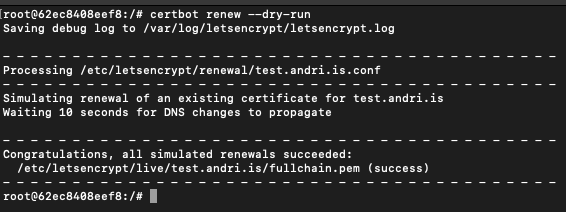
Let's Encrypt and Certbot: The most popular implementation is Let's Encrypt, a free CA. You can use an ACME client like Certbot to completely automate the process. It can fetch a certificate, update your Apache or Nginx configuration, and set up a scheduled task to handle renewals automatically.
Installation & Auto-Renewal:Bash
# For Nginx on Debian/Ubuntu sudo apt install certbot python3-certbot-nginx sudo certbot --nginx# For Apache on RHEL/CentOS sudo dnf install certbot python3-certbot-apache sudo certbot --apacheYou can test the renewal process with
sudo certbot renew --dry-runB. Utilize a Certificate Lifecycle Management (CLM) Platform
For larger organizations, a dedicated CLM platform offers:
Centralized Discovery and Inventory: CLM tools scan your network to discover all existing TLS/SSL certificates, creating a single source of truth. (As an Aftra user, you already understand the importance of external asset discovery—this is the same principle applied to certificates).
Automated Renewal and Provisioning: These platforms integrate with CAs to automate the entire renewal and deployment workflow.
Policy Enforcement & Advanced Alerting: Ensure certificates meet security standards and get robust, centralized reports.
C. Establish a Strong Internal Process
Create and Maintain a Certificate Inventory: If not using a CLM tool, track all certificates in a shared database with details like domain, issuer, expiration date, and owner.
Define Clear Ownership: Assign responsibility for certificate management to a specific team.
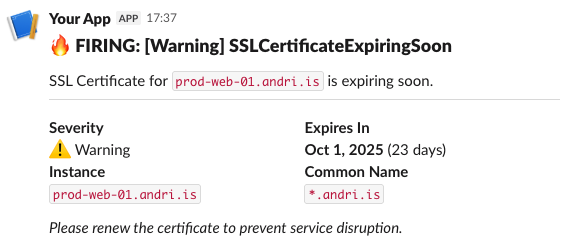
Set Up Multi-Layered Alerts: Don't rely solely on CA emails. Use shared calendars and monitoring solutions to create alerts at 60, 30, and 7 days before expiration.
By combining these strategies, you can transform certificate management from a reactive event into a controlled and predictable part of your security operations.