Step 1: Select the Security Provider
Navigate to the Security section within your Aftra Integrations.
-
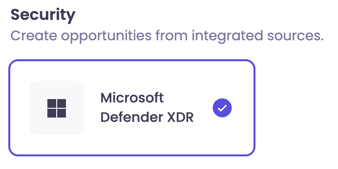
Locate the Microsoft Defender XDR card.
-
Click the card to begin the integration process. It will show a purple checkmark once selected.
Step 2: Authenticate with Microsoft
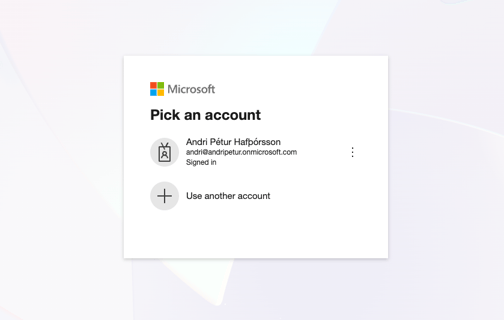
You will be redirected to the Microsoft Pick an account page.
-
Select Account: Click on the corporate Microsoft account you wish to use for the integration (e.g.,
you@yourcompany...). -
Log in: If you are not already signed in, enter your credentials to proceed.
Step 3: Authorize Permissions
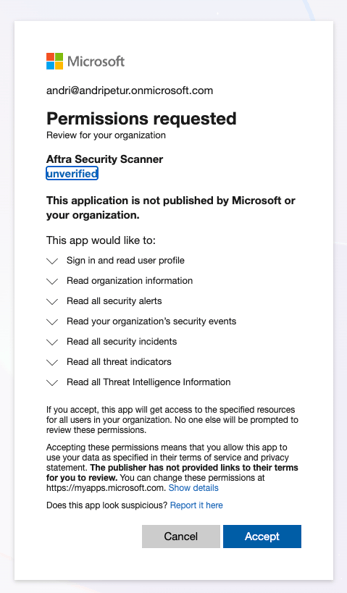
You will be presented with a Permissions requested page for the Aftra Security Scanner application.
-
Review Access: Ensure the application is requesting the necessary read access, including:
-
Read organization information
-
Read all security alerts
-
Read your organization's security events
-
Read all security incidents
-
Read all threat indicators
-
Read all Threat Intelligence Information
-
-
Accept: Click the blue Accept button to authorize the connection.
Step 4: Confirmation
Once authorized, you will be redirected back to the Aftra platform.
-
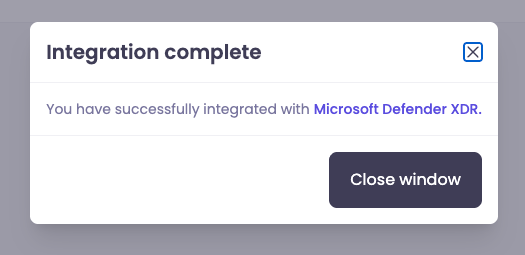
A popup window will appear confirming Integration complete.
-
The message will state: "You have successfully integrated with Microsoft Defender XDR."
-
Click Close window.
Step 5: Verification & Troubleshooting
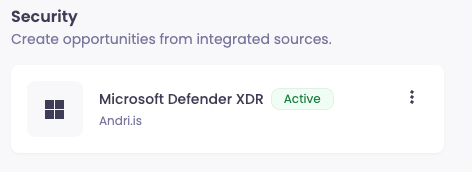
After closing the window, check the status of the integration card.
-
Success: The integration should display as active.
-
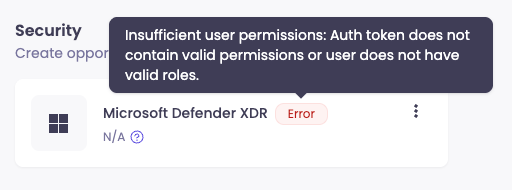
Error State: If you see an Error tag, hover over it for details.
A common error is "Insufficient user permissions," which indicates that the auth token does not contain valid permissions or the user does not have valid roles. Ensure your user account has the appropriate administrative privileges in Microsoft Defender before retrying.