This integration allows Aftra to send opportunity updates to external systems via Microsoft Teams.
Step 1: Create a Teams Channel
In your Microsoft Teams application, prepare the channel where you want to receive notifications.
-
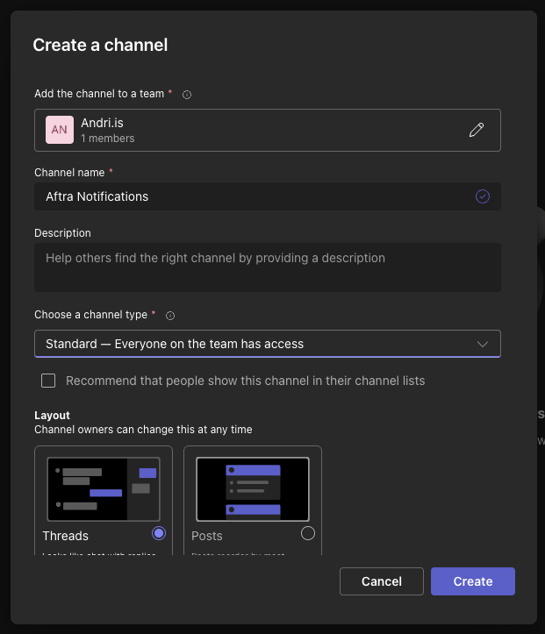
Create Channel: Set up a new channel (e.g., named "Aftra Notifications").
-
Settings: Ensure the channel type is set to Standard so everyone on the team has access.
Step 2: Set Up the Workflow
-
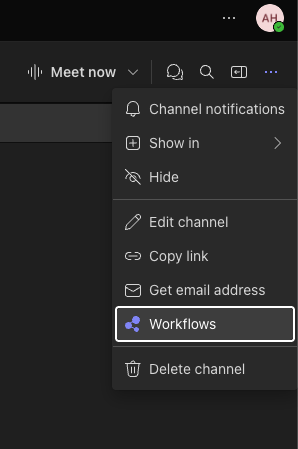
Open Options: Click the three dots (
...) in the top right corner of the channel or conversation view. -
Select Workflow: Choose Workflows from the dropdown menu.
-
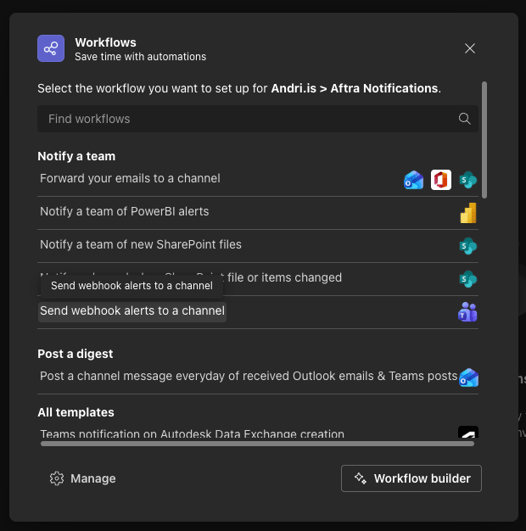
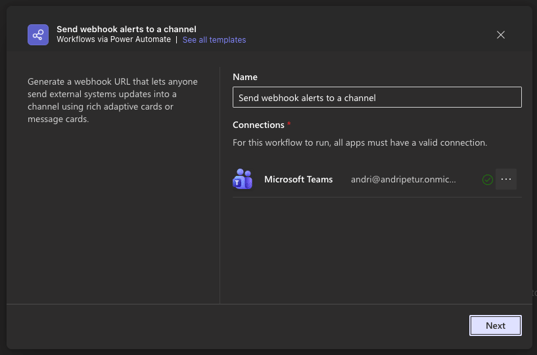
Choose Template: In the Workflows window, search for and select the template labeled "Send webhook alerts to a channel".
Step 3: Configure the Webhook
-
Review Connections: Ensure your Microsoft Teams connection is valid and click Next.
-
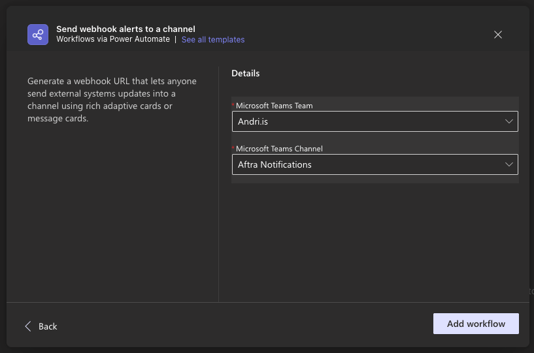
Select Target: Choose your Team (e.g., "Andri.is") and the specific Channel (e.g., "Aftra Notifications") where alerts should be posted.
-
Add Workflow: Click the Add workflow button.
-
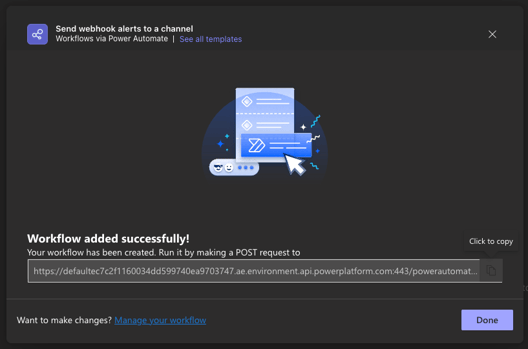
Copy URL: Once the workflow is added successfully, copy the generated URL provided in the confirmation window. Click Done to finish.
Step 4: Configure Aftra Integration
Navigate to the Create Microsoft Teams integration page within the Aftra platform.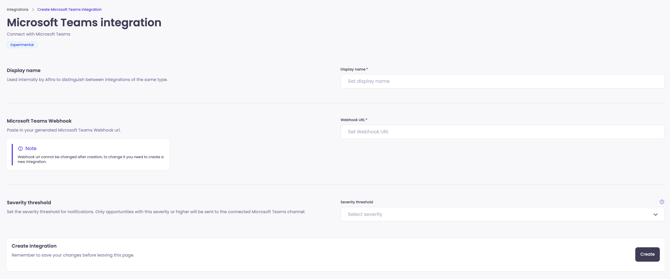
-
Display Name: Enter a name to distinguish this integration internally.
-
Webhook URL: Paste the URL you generated in Step 3 into the Microsoft Teams Webhook field.
-
Severity Threshold: Select the minimum severity level required for an opportunity to trigger a notification.
-
Create: Click the Create button to finalize the setup.
Step 5: Verification & Troubleshooting
-
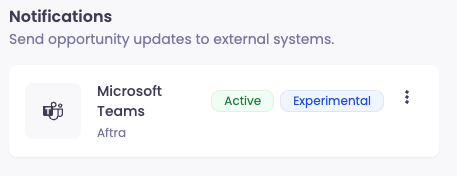
Success: Navigate to the Notifications section. You should see the Microsoft Teams card marked as Active.
-
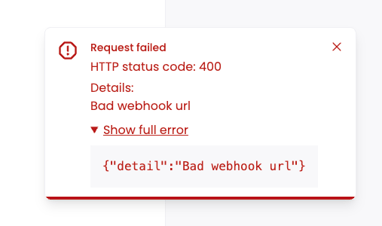
Error: If you encounter a "Request failed" popup with HTTP status code: 400, it typically indicates a "Bad webhook url". Verify that the URL was copied correctly from Teams and try again.