This integration allows Aftra to import your Office 365 directory to link identities and emails, ensuring accurate user mapping and enhanced security visibility within your organization.
Step 1: Select the Office 365 Provider
Navigate to the Users or Integrations section within the Aftra platform. Locate the Office 365 card to begin the integration process.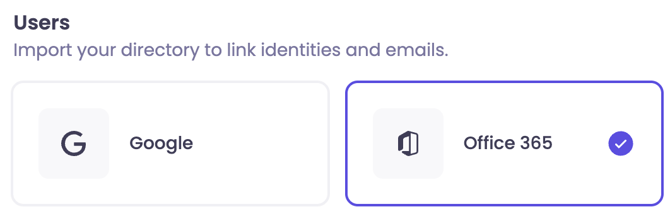
Step 2: Authenticate with Microsoft
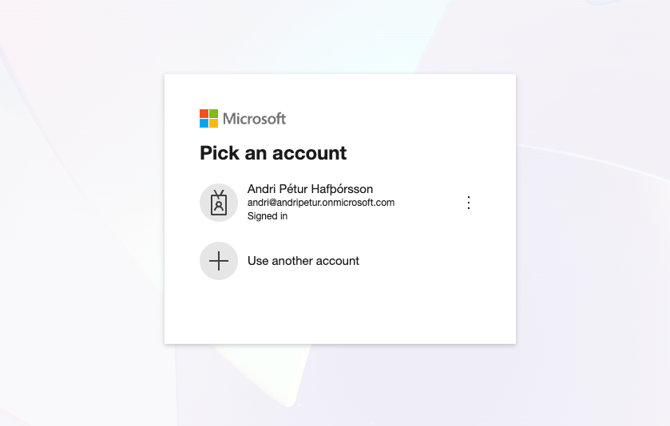
You will be redirected to the Microsoft Pick an account page.
-
Select Account: Choose the corporate Microsoft account you wish to use for the integration (e.g.,
you@yourcompany...). -
Log in: If prompted, enter your credentials to proceed.
Step 3: Review and Accept Permissions
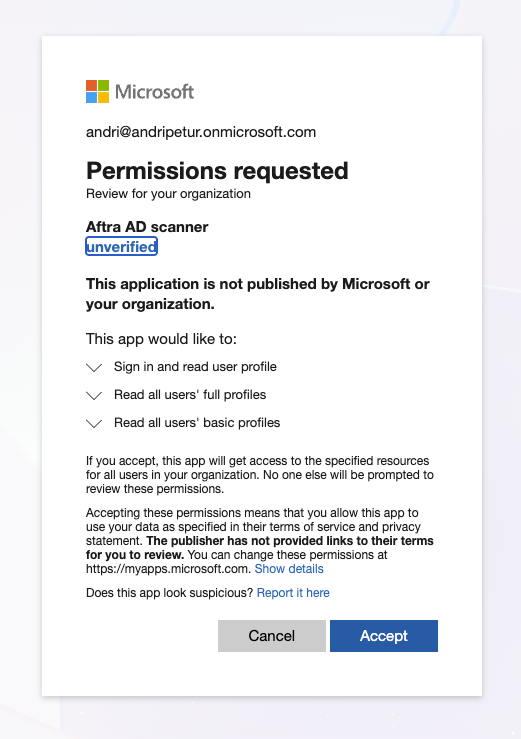
You will be presented with a Permissions requested screen for the Aftra AD scanner application.
-
Review Access: Ensure the application is requesting the correct permissions:
-
Sign in and read user profile
-
Read all users' full profiles
-
Read all users' basic profiles
-
-
Accept: Click the blue Accept button to grant Aftra the necessary access to scan your directory.
Step 4: Confirmation
Once authorized, you will be redirected back to the Aftra platform.
-
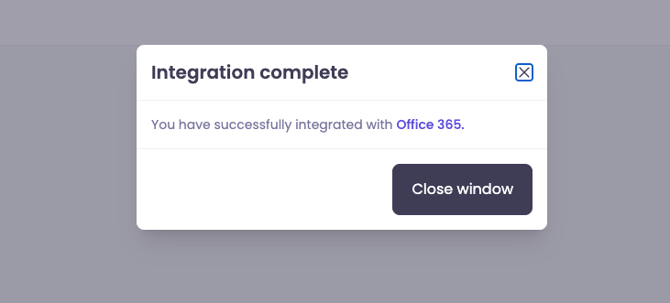
A popup window will appear confirming Integration complete.
-
Click Close window.
Step 5: Verification
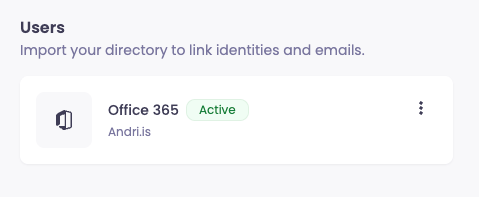
Check the Office 365 card in your dashboard.
-
Success: The card should display an Active tag (in green) alongside your connected domain.
-
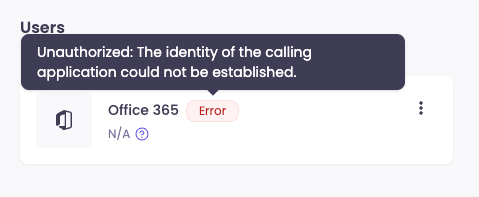
Troubleshooting: If you see an Error tag or an "Unauthorized" message stating the identity could not be established, you may need to wait for 2-3 minutes for it the complete the connection and then refresh.
If this error persists please contact support.