This integration allows Aftra to perform read-only clones of your repositories to scan for secrets, enhancing your project's security.
Step 1: Select the GitHub Provider
-
Navigate to the Repositories section within your Aftra Integrations.
-
Click on the GitHub card to begin the integration process. It will be highlighted with a blue border and a checkmark once selected.
Click Connect in the lower right corner.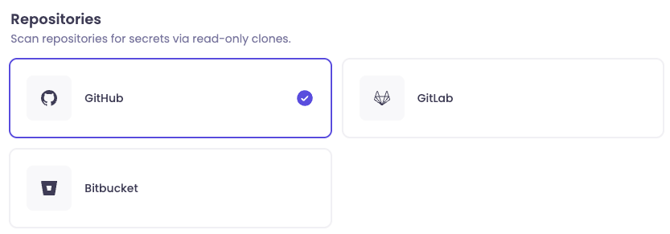
Step 2: Initiate Installation
-
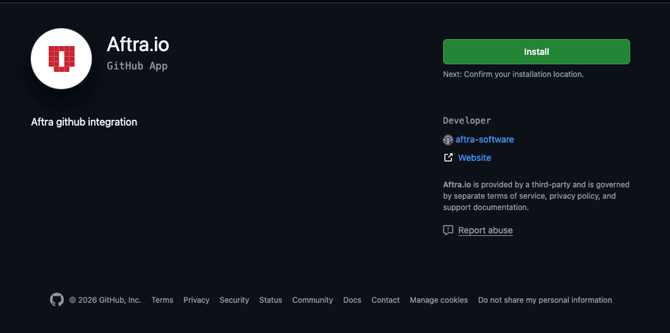
You will be redirected to the Aftra.io GitHub App page.
-
Review the developer information to ensure it is the correct app
(developed byaftra-software). -
Click the green Install button to proceed.
Step 3: Authorize and Select Repositories
-
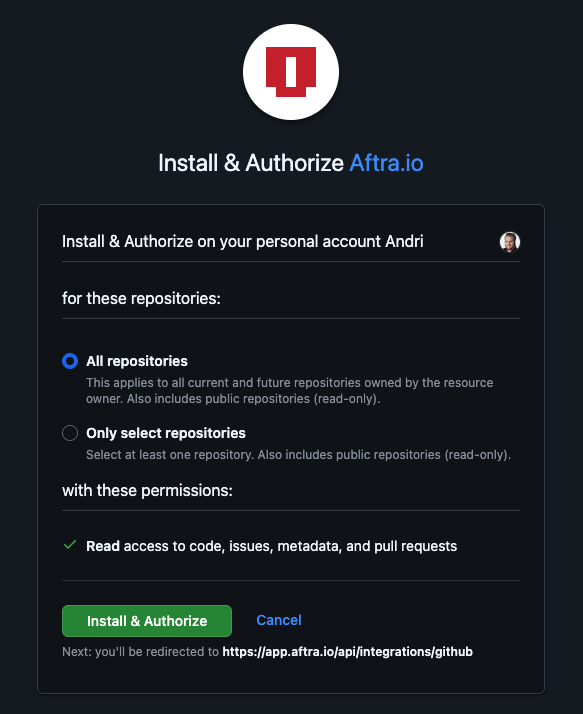
You will be taken to the Install & Authorize page on GitHub.
-
Select Account: Confirm you are installing it on the correct personal or organization account.
-
Choose Repositories: Select which repositories Aftra can scan:
-
All repositories: Grants access to all current and future repositories (Recommended for comprehensive coverage).
-
Only select repositories: Allows you to manually pick specific projects.
-
-
Review Permissions: Note that Aftra requests Read access to code, issues, metadata, and pull requests. This is required for the read-only secret scanning.
-
Click the green Install & Authorize button.
Step 4: Confirmation
-
Once authorized, you will be redirected back to the Aftra platform.
-
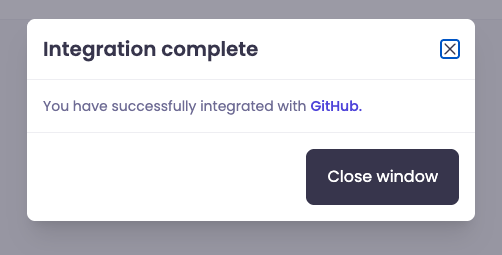
A popup window will appear confirming Integration complete.
-
Click Close window. Your GitHub repositories are now connected and ready to be scanned for secrets.