
Our system has detected one of two potential issues:
-
Compromised Password: The password you use for Spotify has been found in a known data breach, making it insecure and putting your account at risk.
-
Use of Work Email: Your work email is being used for a personal service, which is against company policy to ensure the security and integrity of our systems.
Please follow the relevant instructions below to resolve this issue immediately.
Part 1: Scenario: Your Password Has Been Compromised
If you were notified about a compromised password, you must change it immediately to protect your account, playlists, and followers. The fastest way to do this is using the password reset feature.
Step-by-Step Guide:
-
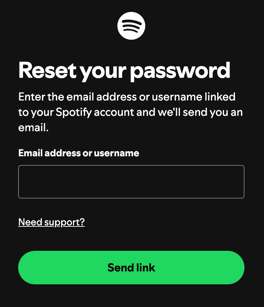
Navigate to the Password Reset Page: Go directly to the Spotify password reset page. (CLICK HERE)
-
Enter Your Account Identifier: Enter your Spotify username or the email address you used to register and click "Send".
-
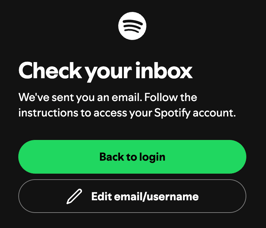
Check Your Email: Spotify will send an email with a password reset link to your inbox. If you don't see it, check your spam or junk folder.
-
Create a New, Strong Password: Open the email and click the reset link. Create a new password that is strong, unique, and not used on any other website.
After completing this, your account will be secure.
If you were also notified about using a work email, please proceed to Part 2.
Part 2: Scenario: Your Work Email is Used on the Account
Using a company email for a personal entertainment service is against Aftra's security policy. You have two options to resolve this.
Option A: Change the Email on Your Account (Recommended)
This is the best option if you wish to keep your Spotify account, playlists, and saved music.
-
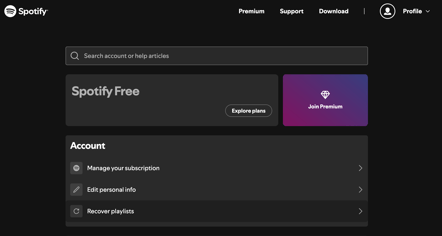
Log In and Go to Your Account: Log in to your Spotify account page.
-
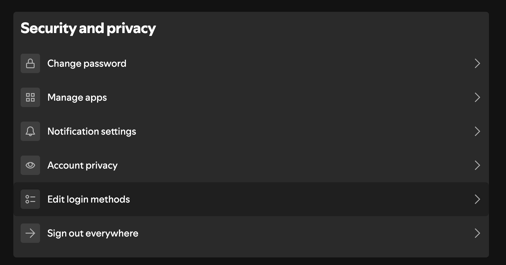
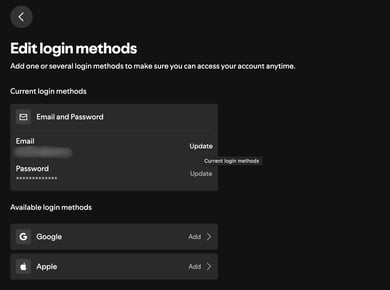
Edit Your Login Methods: On your account overview page, click the "Edit Login Methods" button.
-
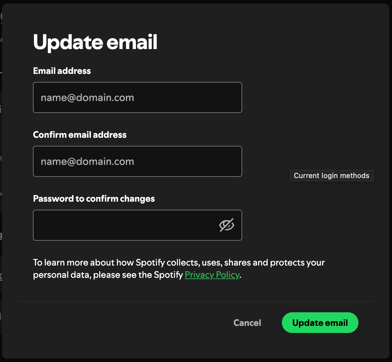
Update Your Email: In the "Email" field, enter your new personal email address. Confirm your current password in the "Password" field at the bottom of the page.
-
Save Changes: Click "Update Email" to finalize the change.
Option B: Permanently Delete Your Account
If you no longer need the account, you can close it permanently.
Warning: This will permanently delete your saved music, podcasts, playlists, and followers. If you have a Premium subscription, you must cancel it first by contacting Spotify support before you can close your free account.
-
Go to the Account Closure Support Page: Navigate to Spotify's official support page for closing your account.
-
Start the Deletion Process: Under the "Don't have Premium?" section, click the link that says "Close your account". You will be guided through a series of steps confirming you understand what you will lose.
-
Confirm via Email: After the final step, Spotify will send a confirmation link to your email address. You must click this link within 24 hours to proceed.
-
Final Grace Period: Once you confirm via email, your account is deactivated. Spotify gives you a 7-day grace period to change your mind. If you do nothing, your account will be permanently deleted after these 7 days.
Thank you for taking prompt action to secure your account and comply with your company's security policies.